
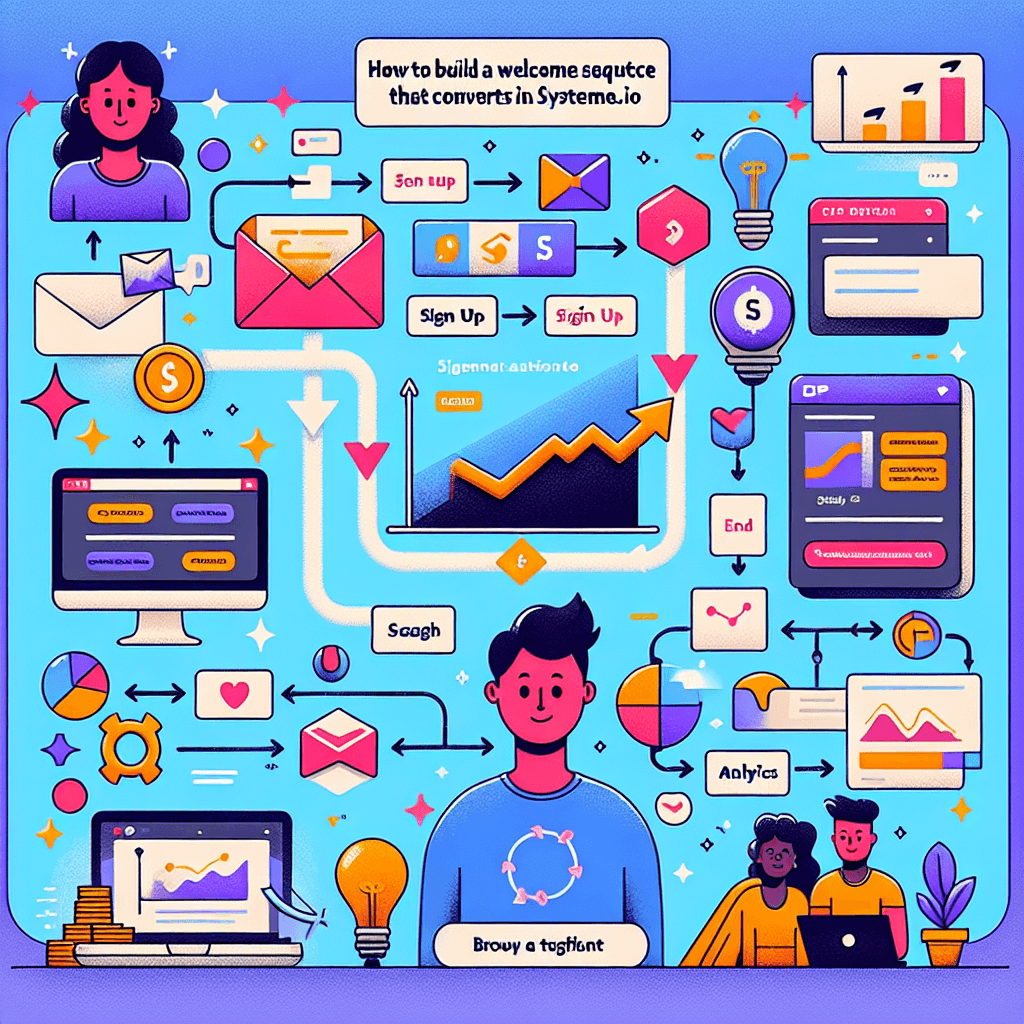
You have successfully driven traffic to your landing page. You’ve offered a compelling lead magnet, and a visitor has just handed over their email address. What happens next is arguably the most critical moment in your relationship with that potential customer.
If you send a generic “Thanks for subscribing” email and then go silent, you are leaving money on the table. However, if you trigger a strategic, value-packed welcome sequence, you turn a cold lead into a warm prospect and, eventually, a loyal customer.
Systeme.io has rapidly become a favorite tool for marketers because it combines funnel building, email marketing, and automation into one platform. But having the tool is one thing; knowing how to orchestrate a high-converting sequence is another.
In this guide, we will walk through exactly how to build a welcome sequence in Systeme.io that not only delivers your lead magnet but builds trust and generates sales on autopilot.
Table of Contents
- Why Your Welcome Sequence Matters
- The Strategy: The 5-Day Welcome Blueprint
- Step 1: Setting Up Tags for Segmentation
- Step 2: Creating Your Email Campaign
- Step 3: Drafting the Emails and Personalization
- Step 4: Setting Delays and Order
- Step 5: Triggering the Sequence (Automation Rules)
- Advanced Tips for Higher Conversions
- Common Pitfalls to Avoid
- Conclusion
- Frequently Asked Questions (FAQ)
Why Your Welcome Sequence Matters
The “Welcome Email” has the highest open rate of any email you will ever send—often hovering between 50% and 80%.
This is the moment your subscriber is most attentive. They have a problem, and they believe you have the solution. A well-constructed sequence in Systeme.io serves three specific purposes:
- Delivery: It fulfills the promise (e.g., delivers the PDF, video, or checklist).
- Indoctrination: It tells your story and establishes authority.
- Segmentation: It helps you understand who your subscribers are based on what they click.
Systeme.io makes this incredibly efficient by allowing you to link your sales funnels directly to your email campaigns without needing third-party integrations like Zapier.
The Strategy: The 5-Day Welcome Blueprint
Before we start clicking buttons in the Systeme.io dashboard, you need a plan. If you just throw random emails together, your unsubscribe rate will skyrocket.
A proven structure for a welcome sequence is the “Value-First” approach. Here is a blueprint you can adapt:
| Email Order | Subject Angle | Goal | Timing |
|---|---|---|---|
| Email 1 | The Delivery | Deliver the Lead Magnet immediately. | 0 Minutes (Instant) |
| Email 2 | The Backstory | Establish empathy/authority. “I was where you are…” | 1 Day later |
| Email 3 | The Hidden Tip | Provide unexpected value or a “quick win.” | 2 Days later |
| Email 4 | The Objection Handler | Address common myths in your niche. Soft sell. | 3 Days later |
| Email 5 | The Hard Call to Action | Direct pitch for your core offer or service. | 4 Days later |
Pro Tip: Write these emails in a Google Doc or Word document first. It is much easier to copy and paste into Systeme.io than to write inside the editor.
Step 1: Setting Up Tags for Segmentation
Systeme.io uses a tag-based system rather than traditional lists. This is more flexible and powerful for automation. Before creating emails, you need a tag to identify people who enter this specific sequence.
- Log in to your Systeme.io dashboard.
- Navigate to Contacts > Tags in the top menu.
- Click the Create button on the right.
- Name your tag something descriptive, such as
Lead - [Lead Magnet Name]orWelcome Sequence - Subscriber. - Click Save.
By tagging users immediately, you can easily filter them later to send broadcast newsletters or exclude them from future promotions if they become buyers.
Step 2: Creating Your Email Campaign
In Systeme.io, automated sequences are called Campaigns.
- Go to the Emails tab in the top navigation bar.
- Select Campaigns from the dropdown menu.
- Click Create (top right corner).
- Name your Campaign. (e.g., “Welcome Sequence – Main Funnel”). The description is optional and internal; your subscribers won’t see it.
- Click Save.
You now have an empty shell ready to be filled with your email content.
Step 3: Drafting the Emails and Personalization
Click on the name of the campaign you just created. You will see an empty list. Let’s add the first email (The Delivery).
Adding the First Email
- Click Create.
- Subject Line: Make it clear and exciting. E.g., “Here is your [Lead Magnet Name] + a surprise!”
- Sender Name: Use your real name or Brand Name.
- Sender Email: Ensure you are using a professional domain email (e.g.,
name@yourdomain.com), not a Gmail/Yahoo address, to ensure high deliverability.
Choosing the Editor
Systeme.io offers two editors:
- Visual Editor: Drag-and-drop interface. Good for newsletters with images and heavy branding.
- Classic Editor: Text-based. Highly Recommended for Welcome Sequences.
Why Classic? Text-based emails look personal, like they came from a friend. They often land in the “Primary” inbox rather than the “Promotions” tab in Gmail.
Writing the Content
- Type your greeting.
- Personalize: Use the “Substitute variables” feature. To insert the subscriber’s first name, use the shortcode
{first_name}.- Example: “Hi {first_name}, thanks for joining!”
- Add Links: Highlight your text (e.g., “Click here to download”) and use the link icon to insert the URL to your lead magnet file (hosted in Systeme.io or Google Drive).
- Attachments: You can also attach files directly on the right-hand sidebar, but linking to a page is usually better for tracking clicks.
[Screenshot Tip: Look for the ‘Save and Publish’ button in the top right corner once you are done editing.]
Step 4: Setting Delays and Order
Once you have saved your first email, you need to configure the automation settings. This is where the magic happens.
Configuring Email #1 (Instant Delivery)
- When you hit “Publish” on your first email, a configuration box appears.
- Delay before sending email: Set this to 0 and select Minutes. This ensures the email goes out immediately after they subscribe.
- Place after this email: Leave this blank for the first email.
- Click Publish.
Configuring Email #2 (The Next Day)
Repeat the creation process for your second email. When you hit publish:
- Delay before sending email: Set this to 1 and select Days.
- Place after this email: Select Email #1 from the dropdown menu.
This tells Systeme.io: “Wait 1 day after Email #1 is sent, then send this one.”
Repeat this process for all 5 emails in your blueprint, adjusting the delays as necessary.
Step 5: Triggering the Sequence (Automation Rules)
Your campaign is built, but currently, nobody is receiving it. You need to tell Systeme.io when to start this campaign.
You typically do this at the Funnel level.
- Navigate to Funnels and select the funnel where you are collecting leads.
- Click on your Squeeze Page (or Opt-in page) step on the left sidebar.
- Click the Automation Rules tab (usually found above the editor preview).
- Click Add Rule.
- Select Funnel Step Form Subscribed.
- Note: This triggers whenever someone submits the form on this specific page.
- Click on the rule you just created to add actions.
- Click Add Action.
- Action 1: Add a Tag. Select the tag you created in Step 1.
- Action 2: Subscribe to Campaign. Select the “Welcome Sequence” campaign you built in Step 2.
- Click Save Rule.
Crucial Check: Test this immediately! Open your squeeze page in an Incognito window, sign up with a test email, and verify that the tag is applied and the first email arrives instantly.
Advanced Tips for Higher Conversions
Once your sequence is live, you can move from “setup mode” to “optimization mode.”
1. Exclude Existing Customers
If your welcome sequence eventually pitches a product, you don’t want to pitch it to people who have already bought it.
- Go to the Automation Rules for your funnel.
- You can set up a rule that says: If New Sale occurs -> Unsubscribe from Campaign.
2. A/B Testing Subject Lines
Systeme.io allows you to see open rates for each email in the campaign view.
- If Email #1 has a 60% open rate but Email #2 drops to 15%, your subject line for Email #2 is likely the problem.
- Change the subject line and monitor it for a week to see if rates improve.
3. Use “Click Automation”
Inside the email editor, you can set up automation based on link clicks.
- If a user clicks a link about “SEO Services” in Email #3, you can automatically tag them as
Interested: SEO. - This allows you to send super-targeted offers later.
Common Pitfalls to Avoid
Even with a great tool like Systeme.io, you can make mistakes that hurt your deliverability or conversion rates.
- Using a “No-Reply” Email: Never send from
noreply@domain.com. It signals to spam filters that you don’t want engagement. Always use a name (e.g.,sarah@domain.com). - Forgetting to “Publish”: In the Campaign view, ensure all checkmarks are green. If an email is gray, it is still in draft mode and won’t send.
- Overloading with Images: Emails with too many large images often get clipped by Gmail or sent to the Promo tab. Keep the image-to-text ratio low.
- Broken Links: Always send a test email to yourself and click every single link before driving traffic. There is nothing worse than a welcome email with a broken download link.
Conclusion
Building a welcome sequence in Systeme.io is one of the highest-leverage activities you can do for your online business. It works 24/7, greeting every new subscriber, delivering value, and positioning your offer perfectly.
By following the steps above—tagging your leads, using the classic editor for a personal touch, and structuring your timeline strategically—you will move beyond simple “list building” and start true “relationship building.”
Don’t let your leads go cold. Log in to Systeme.io today, set up your 5-day sequence, and watch your engagement soar.
Have you set up your first automation yet? Let us know in the comments below if you prefer the Visual Editor or the Classic Editor!
Frequently Asked Questions (FAQ)
1. Is Systeme.io free to use for welcome sequences?
Yes. Systeme.io’s “Freemium” plan allows you to have up to 2,000 contacts, create 3 sales funnels, and send unlimited emails. This includes full access to Campaigns and Automation rules, making it perfect for beginners.
2. How many emails should be in a welcome sequence?
While there is no hard rule, 3 to 7 emails is the industry standard. A 5-email sequence over 5-7 days strikes a good balance between staying top-of-mind and not being annoying.
3. Can I use my Gmail address as the sender?
Technically yes, but it is highly discouraged. Using a free email (Gmail, Yahoo) often results in your emails going straight to Spam. It is best to purchase a custom domain (e.g., yourname.com) and use a professional email address.
4. What is the difference between a Newsletter and a Campaign in Systeme.io?
A Newsletter is a one-time broadcast sent to your list at a specific time (e.g., a weekly update). A Campaign is an automated series of emails triggered by an action (like signing up), which runs on autopilot for every new subscriber.
5. Why are my emails not sending?
Check two things: First, ensure the emails inside the campaign are set to “Active” (green checkmark). Second, check your Automation Rule to ensure the trigger “Funnel Step Form Subscribed” is correctly connected to the action “Subscribe to Campaign.”
6. Can I add images to the Classic Editor?
Yes. Even though it is text-focused, the Classic Editor allows you to insert images using the image icon in the toolbar. This is great for adding a signature headshot or a logo without the bloat of the full Visual Editor.

लेटेस्ट अपडेट्स, ट्रेंडिंग न्यूज़, वायरल टॉपिक्स, फैशन से जुड़ी जानकारी और बहुत कुछ। मोबाइल लॉन्च, टेक तुलना और ताज़ा मुद्दों पर इन-डेप्थ आर्टिकल्स के साथ हमेशा रहें अपडेटेड