
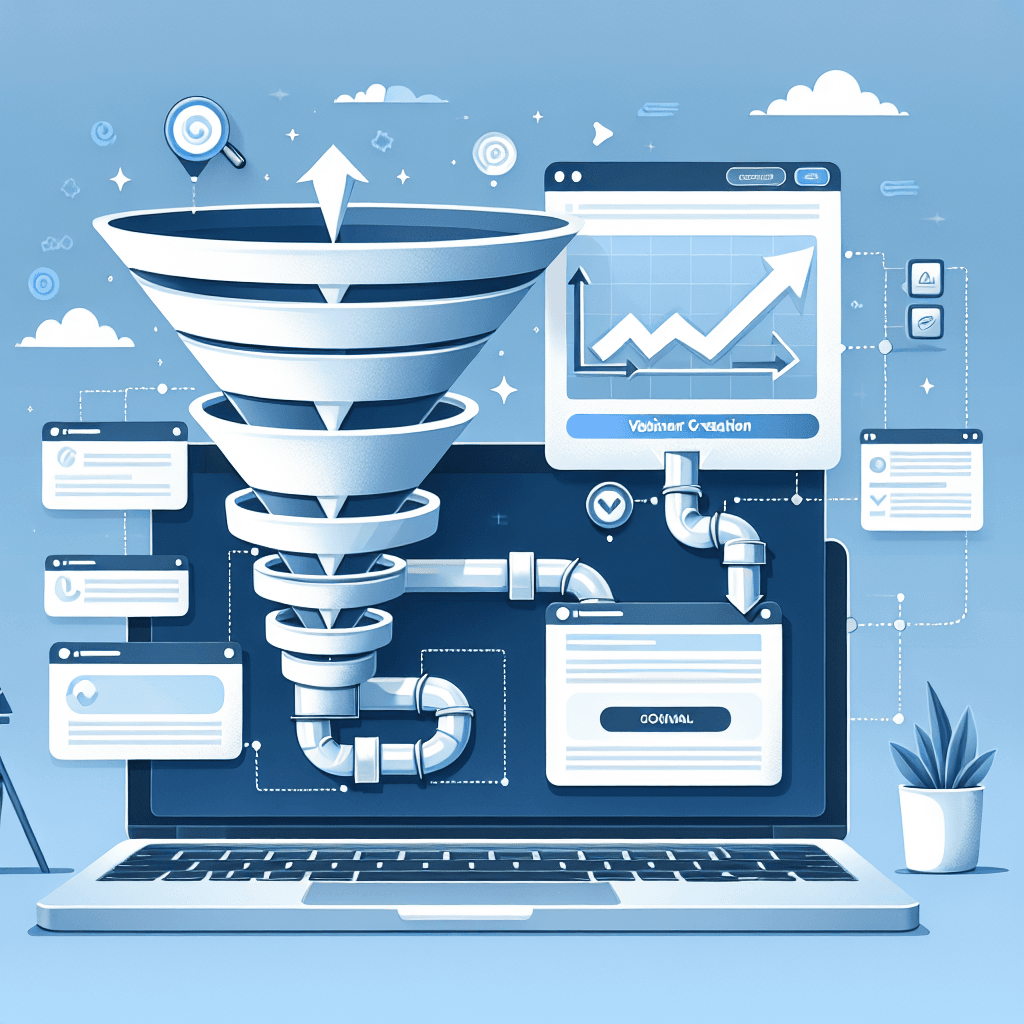
Webinars remain one of the highest-converting marketing strategies in the digital world today. Whether you are selling a high-ticket course, a coaching program, or SaaS software, the ability to walk a potential customer through a presentation and close the sale live (or simulive) is unmatched. However, the technical barrier has always been high. Traditionally, you needed a landing page builder, an email marketing platform, and webinar hosting software, all glued together with Zapier.
Enter Systeme.io. This all-in-one marketing platform has revolutionized the way creators build funnels by integrating everything under one roof. Creating a webinar funnel in Systeme.io is not only cost-effective but also surprisingly simple once you know the workflow.
In this guide, we will walk you through the exact steps to build a high-converting evergreen webinar funnel from scratch using Systeme.io. We will cover everything from the initial setup to the email automation that ensures your attendees actually show up.
Table of Contents:
- Why Choose Systeme.io for Webinars?
- Pre-Requisites: What You Need Before You Start
- Step 1: Setting Up the Funnel Structure
- Step 2: Designing the Registration Page
- Step 3: Configuring the Webinar Broadcast Room
- Step 4: Setting Up Automation and Email Workflows
- Step 5: The Checkout and Thank You Page
- Common Pitfalls and How to Avoid Them
- Frequently Asked Questions
- Conclusion
Why Choose Systeme.io for Webinars?
Before we dive into the “how-to,” it is essential to understand why Systeme.io is often superior to stacking multiple tools like ClickFunnels and Zoom for automated webinars.
The primary advantage is the Evergreen Webinar feature available on their “Webinar” and “Unlimited” plans. An evergreen webinar runs on autopilot, simulating a live event. This allows you to generate leads and sales 24/7 without needing to be physically present for every presentation.
Systeme.io vs. Traditional Stack
Here is a quick comparison of using Systeme.io versus a traditional multi-tool stack:
| Feature | Systeme.io | Traditional Stack (e.g., ClickFunnels + Zoom + ActiveCampaign) |
|---|---|---|
| Integration | Native (All-in-one) | Requires Zapier or complex APIs |
| Cost | Low (Monthly subscription covers all) | High (Separate bill for each tool) |
| Automation | Trigger-based within the same dashboard | prone to “tech breaks” between platforms |
| Video Hosting | Included (Unlimited) | Often requires Wistia or Vimeo Pro |
| Learning Curve | Low | High |
By centralizing your efforts, you reduce the points of failure in your funnel.
Pre-Requisites: What You Need Before You Start
To follow this tutorial smoothly, ensure you have the following assets ready. It will save you from stopping halfway through to create content.
- A Systeme.io Account: Note that the “Evergreen Webinar” feature typically requires the Webinar plan or higher. However, you can practice building the pages on a lower plan, though the automation features might be restricted.
- The Webinar Video File: Since this is an evergreen funnel, you need a pre-recorded video file (MP4). Ideally, this should be hosted directly on Systeme.io for better playback control, though YouTube/Vimeo links work (but look less professional).
- Ad Copy/Page Copy: Have your headline, bullet points, and presenter bio written out.
- Email Sequence: Draft at least 3 emails:
- Confirmation email (sent immediately).
- Reminder email (sent 1 hour before).
- Follow-up/Replay email (sent after the webinar).
Step 1: Setting Up the Funnel Structure
Let’s get into the dashboard. Follow these steps to initialize your funnel.
- Navigate to Funnels: On your Systeme.io dashboard, click on the Funnels tab in the top menu.
- Create New: Click the Create button in the top right corner.
- Name and Type:
- Name: Give it a clear name (e.g., “Evergreen Webinar – Product X”).
- Goal: Select Run an evergreen webinar.
- Currency: Choose your preferred currency.
- Save: Click Save.
Once created, Systeme.io will automatically generate a funnel skeleton for you. This usually includes:
- Webinar Registration Page
- Webinar Thank You Page
- Webinar Broadcast Page
You can add sales pages or order forms later, but this is your core structure.
Step 2: Designing the Registration Page
The registration page is where you “sell” the free event. Your conversion rate here dictates the success of the rest of the funnel.
Selecting a Template
Click on the Webinar Registration Page step in the left-hand column. You will see a gallery of templates. Choose one that is clean and mobile-responsive. Don’t worry about the colors yet; you can change those.
Editing the Page
Click the Magic Wand icon (Edit Page) to enter the editor.
- The Headline: This is the most critical element. It should promise a specific result or solution. Use the Text element to make this H1 and bold.
- The Form: Ensure the input fields (Name, Email) are clearly visible. In Systeme.io, the “Button” action should be set to Submit Form.
- The “When” Selector: Systeme.io allows you to offer different time slots. Drag the Webinar Date/Time element onto the page if it isn’t already there.
- Pro Tip: Don’t offer too many times. “Watch Yesterday’s Replay,” “Watch Now,” or “Today at 8 PM” are good standard options.
- Benefits List: Use a bulleted list to explain what they will learn.
- Mobile Check: Click the mobile icon at the bottom left of the editor. Ensure your button and form are above the fold on mobile devices.
Click Save Changes and exit the editor.
Step 3: Configuring the Webinar Broadcast Room
This is the technical heart of your funnel. This is the page where the user watches the video.
Uploading the Video
- Click on the Webinar Broadcast Page step.
- Select a template (usually a minimalist black or dark grey background works best to keep focus on the video).
- Enter the Editor.
- Click on the video element. On the left sidebar, under Video Type, select Upload file.
- Upload your MP4 file. Note: Uploading directly to Systeme.io prevents users from pausing, skipping ahead, or seeing YouTube recommended videos, which kills conversion rates.
Configuring “Simulated Live” Elements
To make the experience feel like a live event, use the Settings (gear icon) on the webinar page configuration (outside the visual editor).
- Auto-start: Enable this so the video plays immediately when the timer hits zero.
- Exit Intent: You can set up a popup if they try to leave.
Adding the Call to Action (CTA)
You don’t want your “Buy Now” button to appear immediately. You want it to appear after you have pitched your product in the video.
- In the Editor, drag a Button below the video player.
- Style it (e.g., “Get The Offer Now”).
- Click on the button and look at the sidebar options. Find Delay.
- Set the Delay: If your pitch starts at 45 minutes and 30 seconds, set the delay to
00:45:30. - The button will remain invisible until that exact moment in the presentation.
Step 4: Setting Up Automation and Email Workflows
A webinar funnel fails without email reminders. If people register but don’t attend, you have lost a lead.
Automation Rules
Go to the Webinar Registration Page step in your funnel settings and click the Automation Rules tab.
- Add Rule: Choose Funnel Step Form Subscribed.
- Add Action: Choose Subscribe to Campaign (if you have a pre-written campaign) or Send Email (for individual emails).
- Add Action (Tagging): Always tag your users. Add a tag like
registered-webinar-name. This helps you segment your list later.
The Reminder Sequence
Since this is an “Evergreen” webinar, the timing is tricky. However, Systeme.io handles this natively if you selected “Run an evergreen webinar” at the start.
In the Webinar Registration Page settings, ensure you utilize the Email triggers.
- Upon Registration: Send a generic “You’re in! Here is your link” email. Systeme.io creates a unique link for every user.
- Systeme.io Native Reminders: Check the webinar settings to see if the system can send automatic reminders based on the slot chosen, or build a workflow.
Advanced Workflow (Visual Builder)
For better control, go to Automations > Workflows.
- Trigger: Tag added (
registered-webinar-name). - Action: Send email (Welcome).
- Decision: Did they attend? (You can check this via tags if you set up rules on the broadcast page).
- If Yes: Send “Here is the offer” emails.
- If No: Send “You missed it! Here is the replay link” emails.
Step 5: The Checkout and Thank You Page
Once the CTA button appears in your webinar and the user clicks it, where do they go?
- Create a New Step: In your funnel menu, click Add Step.
- Type: Choose Order Form.
- Configuration:
- Connect your payment gateway (Stripe/PayPal) in the main settings.
- Select the “Digital Product” or “Course” you are selling under the Resources section of the Order Form settings. This ensures automatic access is granted upon purchase.
- Thank You Page: Always end with a Thank You page that confirms the order and gives instructions on how to access the product.
Advanced Tips for Higher Conversions
Now that the structure is built, here are three pro tips to maximize your revenue.
1. The Deadline Funnel Technique
Scarcity sells. On your Order Form or Sales Page, use a countdown timer. In Systeme.io, you can set a countdown timer to be “Fixed” (ends on a specific date) or “Evergreen” (resets for every individual user, e.g., 24 hours after they click the link). Use the Evergreen setting to force a decision.
2. Segmenting Attendees vs. Non-Attendees
On your Webinar Broadcast Page, add an Automation Rule:
- Trigger: Page Visited.
- Action: Add Tag (
attended-webinar).
Now, in your email marketing, you can send different messages.
- People with
attended-webinartag: Hard sell, focus on the product benefits. - People WITHOUT tag: Soft sell, focus on getting them to watch the replay.
3. The “Sticky” Video
In the page editor, you can make the video row “sticky” so that if the user scrolls down to read text or Q&A below the video, the video player stays stuck to the top of the browser window. This keeps engagement high.
Common Pitfalls and How to Avoid Them
Even experienced marketers make mistakes. Watch out for these issues:
- Video Format Issues: Ensure your video is exported in a web-friendly format (H.264 MP4) and is compressed. A 5GB file will buffer and cause drop-offs. Use a tool like Handbrake to compress your video before uploading to Systeme.io.
- Forgot the Link: In your automated emails, you must use the system variable for the webinar link
{webinar_link}. Do not hard-paste a URL, or the tracking won’t work for the specific time slot the user selected. - Mobile Unfriendly: 50% of your attendees will likely watch on a phone. Always test your broadcast room on a mobile device. If the chat box covers the video or the CTA button is off-screen, you will lose sales.
- Over-Complicating the Registration: Ask for Name and Email. That’s it. asking for phone numbers or company names decreases conversion rates on cold traffic.
Frequently Asked Questions
1. Is the Webinar feature free on Systeme.io?
The basic funnel building is available on the Free plan, but the specialized Evergreen Webinar function (which automates the timing and simulation) is typically reserved for the “Webinar” ($47/mo) and “Unlimited” ($97/mo) plans.
2. Can I do live webinars with Systeme.io?
Systeme.io is primarily designed for automated (evergreen) webinars. If you want to do a truly live webinar, it is better to embed a YouTube Live or Zoom link, though you lose some of the native tracking features.
3. How long should my webinar be?
A standard high-converting webinar structure is usually 45 to 60 minutes. 5-10 minutes for intro/story, 30 minutes of valuable teaching, and 15 minutes for the pitch and Q&A.
4. What happens if someone joins late?
In an evergreen setup, you can choose if the video starts from the beginning for everyone or if it plays “live” (meaning if they join 10 minutes late, they miss the first 10 minutes). The “Start from beginning” option usually yields better user satisfaction.
5. Can I fake the chat?
Systeme.io allows you to leave the comments section open, but it does not currently have a “fake ghost chat” feature like some specialized webinar software (e.g., EverWebinar). This is actually better for trust; real comments from real users are more authentic.
Conclusion
Building a webinar funnel in Systeme.io eliminates the “tech headache” that usually stops entrepreneurs from launching their campaigns. By consolidating your hosting, email marketing, and funnel building into one dashboard, you can focus on what actually matters: your offer and your traffic.
Remember, the goal of an evergreen funnel is iteration. Launch your funnel, drive traffic, look at the stats (Registration rate, Attendance rate, Conversion rate), and tweak. Maybe your headline needs work, or maybe your video pitch needs to be stronger. With Systeme.io, making those changes takes seconds, not hours.
Ready to build your funnel? Log in to your dashboard, create a new funnel, and start uploading your content today.
If you found this guide helpful, please share it with your network or leave a comment below with your questions!

लेटेस्ट अपडेट्स, ट्रेंडिंग न्यूज़, वायरल टॉपिक्स, फैशन से जुड़ी जानकारी और बहुत कुछ। मोबाइल लॉन्च, टेक तुलना और ताज़ा मुद्दों पर इन-डेप्थ आर्टिकल्स के साथ हमेशा रहें अपडेटेड