
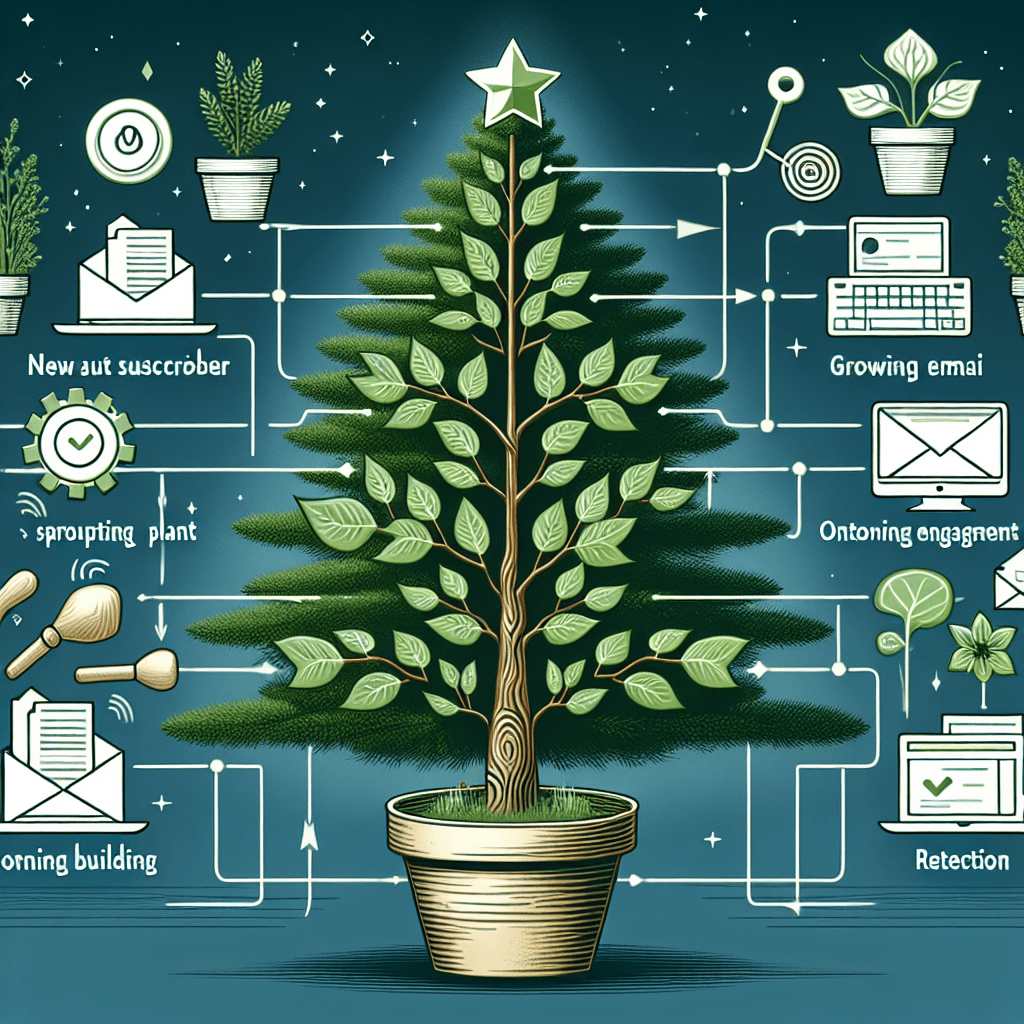
Imagine a marketing machine that works tirelessly for you 24 hours a day, 7 days a week. It nurtures your leads, builds trust, handles objections, and closes sales while you are sleeping, spending time with family, or working on other parts of your business.
This isn’t a fantasy; it is the power of an evergreen email campaign.
When combined with a robust all-in-one platform like Systeme.io, setting up these automated sequences becomes not only possible but surprisingly simple. Whether you are a digital marketer, a course creator, or a small business owner, mastering email automation is one of the highest-ROI activities you can perform.
In this comprehensive guide, we will walk you through exactly how to build a high-converting evergreen email campaign using Systeme.io. From the initial technical setup to advanced workflow strategies, we have got you covered.
Table of Contents
- What is an Evergreen Email Campaign?
- Why Choose Systeme.io for Email Automation?
- Prerequisites: Before You Build
- Step-by-Step Guide: Setting Up Your Campaign
- Connecting the Trigger: Automation Rules vs. Workflows
- Best Practices for High Open Rates
- Common Pitfalls and How to Avoid Them
- Frequently Asked Questions (FAQ)
- Conclusion
What is an Evergreen Email Campaign?
An evergreen email campaign (often called an autoresponder sequence or drip campaign) is a series of pre-written emails sent automatically to subscribers based on a specific trigger. Unlike a “Newsletter” or “Broadcast,” which is a one-time email sent to your list at a specific moment in time, an evergreen campaign is timeless.
Here is how it works:
- User A signs up on Monday. They receive Email #1 immediately, Email #2 on Tuesday, and Email #3 on Thursday.
- User B signs up on Friday. They receive Email #1 immediately, Email #2 on Saturday, and Email #3 on Monday.
Every subscriber goes through the exact same journey, regardless of when they join. This consistency allows you to perfect your sales pitch and automate your relationship-building process.
Why Choose Systeme.io for Email Automation?
There are dozens of email marketing tools out there—Mailchimp, ActiveCampaign, ConvertKit, AWeber—so why use Systeme.io?
Systeme.io is unique because it is an all-in-one marketing platform. Most other tools require you to integrate a separate funnel builder, a separate hosting platform, and a separate email tool. Systeme.io houses everything under one roof, which simplifies the technical setup and ensures your email automation “talks” perfectly to your sales funnel.
Here is a quick comparison of how Systeme.io stacks up for automation specifically:
| Feature | Systeme.io | Traditional Email Tools (e.g., Mailchimp) | Advanced CRMs (e.g., ActiveCampaign) |
|---|---|---|---|
| Integration | Built-in (Seamless) | Requires Zapier or API | Requires Integration |
| Cost | Free/Low cost mostly unlimited | Gets expensive quickly | Very Expensive |
| Funnel Connection | Native | External | External |
| Visual Workflow | Yes (Easy to use) | Limited on lower plans | Yes (Complex) |
| Deliverability | High | Variable | High |
For beginners and intermediate users, Systeme.io offers the best balance of power and simplicity. You don’t need to be a coding wizard to set up complex automations.
Prerequisites: Before You Build
Before diving into the Systeme.io dashboard, you need a few elements in place to ensure your campaign runs smoothly.
- A Lead Magnet: You need a reason for people to join your list. This could be a free ebook, a webinar, a checklist, or a discount code.
- Tagging Strategy: In Systeme.io, Tags are everything. Unlike other platforms that use “Lists,” Systeme.io uses a tag-based system. You should create a tag for your new leads (e.g.,
lead-magnet-optin). - The Email Copy: Write your emails in a document first. It is much easier to copy and paste into the editor than to write inside the tool. Plan for a 3-5 email sequence for starters.
- Email 1: Value + Delivery of Lead Magnet (Immediate)
- Email 2: Backstory/Relatability (Day 1)
- Email 3: Addressing Pain Points (Day 2)
- Email 4: The Solution/Product Pitch (Day 3)
Step-by-Step Guide: Setting Up Your Campaign
Now, let’s get into the technical “how-to.” Follow these steps to build your campaign container.
Step 1: Navigate to Campaigns
Log in to your Systeme.io dashboard. In the top navigation bar, hover over Emails and click on Campaigns.
[Visual Note: You will see a list of current campaigns. If you are new, this area will be empty.]
Step 2: Create a New Campaign
Click the “Create” button in the top right corner. A popup will appear asking for a Name and a Description.
- Name: Make this internal and descriptive (e.g., “Welcome Sequence – Ebook”).
- Description: Optional, but useful for team notes.
Click Save. You will now see your new campaign in the list. Click on the campaign name to enter it.
Step 3: Add Your First Email
Inside the campaign, it will be empty. Click the “Create” button (sometimes labeled “Add an email”).
You will be prompted to enter:
- Subject: The subject line your subscriber sees.
- Sender Name: Your name or brand name.
- Sender Email: Your professional email address.
- Editor: Choose between the Visual Editor (drag-and-drop) or the Classic Editor.
Pro Tip: For high deliverability, use the Classic Editor. It looks like a plain text email (like one you’d send to a friend), which Gmail often filters into the Primary Inbox rather than the Promotions tab.
Step 4: Configuring the First Email (The Welcome Email)
Write your content. Since this is the first email, you want it to go out immediately.
- Delay: Leave the “Delay before sending email” set to 0 minutes/hours if you want it instant.
- Placement: Since it’s the first one, you don’t need to select “Place after this email.”
Click Save and Publish.
Step 5: Adding Subsequent Emails
Repeat the creation process for your second email. However, the settings will change slightly:
- Delay: Set this to 1 Day (or 24 hours).
- Place after: Select your First Email from the dropdown menu.
This setting tells Systeme.io: “Wait 1 day after the First Email was sent, then send this one.”
Continue this process for every email in your sequence.
[Visual Note: Your screen should now show a list of emails stacked vertically, with delay times listed on the left side, showing the flow from Day 0 to Day X.]
Connecting the Trigger: Automation Rules vs. Workflows
You have built the emails, but right now, nobody is receiving them. You need a Trigger to push people into this campaign. In Systeme.io, there are two ways to do this: Automation Rules (Simple) and Workflows (Advanced).
Option A: The Simple Method (Automation Rules)
Use this if you have a simple funnel (e.g., Squeeze Page -> Thank You Page).
- Go to Funnels and select your funnel.
- Click on your Squeeze Page (Opt-in page) step.
- Click the Automation Rules tab.
- Click Add Rule -> select Funnel Step Form Subscribed.
- Click on the rule you just created to edit the actions.
- Click Add Action -> Subscribe to Campaign.
- Select the campaign you created earlier.
- Important: Add a second action here: Add Tag. Tag them as a lead.
- Click Save Rule.
Now, anyone who enters their email on that page gets added to the campaign instantly.
Option B: The Advanced Method (Workflows)
Use this if you want complex logic (e.g., “If they click a link, move them to a different campaign”).
- Hover over Automations and select Workflows.
- Create a new Workflow.
- Trigger: Select Tag Added. Choose your “New Lead” tag.
- Action: Click the (+) symbol below the trigger. Select Action -> Subscribe to Campaign. Choose your campaign.
- Decision (Optional): You can add “Decisions” later. For example, check if they clicked a link in Email #3. If Yes, send them a special offer. If No, keep them in the flow.
Recommendation: For beginners, start with Option A. It is robust enough for 90% of businesses.
Best Practices for High Open Rates
Creating the campaign is technical; getting people to open it is psychological. Here are tips to ensure your evergreen campaign performs well.
1. Subject Line Testing
The subject line is the gatekeeper. If it’s boring, your content doesn’t matter.
- Curiosity: “I made a huge mistake…”
- Benefit: “How to save 10 hours this week”
- Urgency: “Your download is waiting (expiring soon)”
2. Scrub Your List
Evergreen campaigns run forever. Over time, some subscribers will become inactive. Use Systeme.io’s automation to remove the tag or unsubscribe users who haven’t opened an email in 6 months. This keeps your deliverability scores high.
3. Mobile Optimization
More than 50% of emails are opened on mobile.
- Keep paragraphs short (1-2 sentences).
- Use a font size of at least 16px.
- Check your preview in Systeme.io (use the mobile icon in the editor) before publishing.
Common Pitfalls and How to Avoid Them
Even with a great tool like Systeme.io, mistakes happen. Avoid these common errors:
The “Loop” Error
Sometimes users accidentally set up automations that loop. For example, “When a tag is added, subscribe to campaign” AND “When campaign is finished, add tag.” This creates an infinite loop where the user receives the same emails forever.
- Fix: Check your Workflow logic carefully. Ensure there is an exit point.
Forgetting to “Stop” the Campaign on Purchase
If your evergreen campaign is pitching a product, and the subscriber buys it on Email #2, you do not want them to receive Email #3, #4, and #5 pitching the product they already own.
- Fix: Create an automation rule on your Order Form or Payment Page:
- Trigger: New Sale.
- Action: Unsubscribe from Campaign [Name].
- Action: Subscribe to Campaign [Customer Onboarding].
Overwhelming the Reader
Don’t send 5 emails in 24 hours.
- Fix: Stick to one email per day maximum for educational sequences. If doing a “flash sale” sequence, 2 per day on the last day is acceptable, but proceed with caution.
Frequently Asked Questions (FAQ)
1. Is Systeme.io really free for email marketing?
Yes. The Freemium plan allows you to have up to 2,000 contacts and send unlimited emails. You can also create 1 email campaign on the free plan, which is perfect for getting started.
2. How many emails should be in an evergreen campaign?
There is no set rule, but a “Welcome Sequence” is typically 3-5 emails. A “Sales Sequence” might be 5-10 emails. The key is to provide value before asking for the sale.
3. Can I edit an email while the campaign is active?
Yes! You can edit any email in an active campaign. The changes will apply to anyone who hasn’t received that specific email yet.
4. What happens if I change the delay time on an active campaign?
This can get tricky. If you change a delay from 1 day to 3 days, it generally affects new users entering that step. Users already past that step won’t be affected. It is usually safer to duplicate the campaign, make changes, and switch the automation trigger to the new campaign if you are making major structural changes.
5. Why are my emails going to spam?
This usually relates to domain authentication. Ensure you have authenticated your professional domain name in Systeme.io settings (Setting up DKIM/SPF records). Also, avoid using spam-trigger words like “Free Money,” “100%,” or writing in ALL CAPS.
6. Can I use affiliate links in my Systeme.io emails?
Absolutely. Systeme.io is very affiliate-marketing friendly. Just ensure you disclose that it is an affiliate link to stay compliant with regulations.
Conclusion
Creating an evergreen email campaign in Systeme.io is one of the smartest investments of time you can make for your business. It transforms your lead generation from a manual hustle into an automated asset.
By following the steps above—setting up your campaign container, writing engaging emails, and connecting the correct triggers—you can build a system that nurtures leads and generates sales while you focus on creating content and growing your traffic.
Remember, the goal isn’t just to “send emails.” It is to build a relationship. Start simple with a 3-day sequence, monitor your open rates, and refine your messages over time.
Have you set up your first campaign yet? Let us know in the comments below if you prefer using Automation Rules or Workflows!

लेटेस्ट अपडेट्स, ट्रेंडिंग न्यूज़, वायरल टॉपिक्स, फैशन से जुड़ी जानकारी और बहुत कुछ। मोबाइल लॉन्च, टेक तुलना और ताज़ा मुद्दों पर इन-डेप्थ आर्टिकल्स के साथ हमेशा रहें अपडेटेड